Category Archives: Online Learning

Day 12: Nurturing a Lively, Vibrant Online Discussion

Your online discussion forums and any live sessions you conduct are a critical component of your “faculty presence” and “learning community” in your online courses (Swan, 2002; Gosmire, Morrison & Van Osdel, 2009). In classes where there is no interaction, students frequently complain that they feel like they did not “get anything” for their money. They feel like they could have just read all of this on their own and why did they need the instructor? To address this challenge, today we examine tips for vibrant online discussions.

Asking Good Questions

  • Ask questions that lead to critical thinking and higher level thinking.
  • Invite students to share opinions, take sides on an issue, to analyze options.
  • Invite students to share their experiences as they relate to the content (Freed and Lim, 2001).
  • Spark students’ interest with current news (Rochester Institute of Technology 2008)

Organize

  • Use student moderators. Have them take turns asking quality questions based on the content. If needed, teach them how to ask good questions.
  • Split students into groups of 3-7 for online discussion. This makes the conversation easier to follow  (Worcester Polytechnic Institute, 2010).

Your Presence

With practice and over time, you will find the strategies and online teaching behaviors that fit your style and beliefs about learning, as well as meet the unique needs of online students.

Weekly Routine Reminder

Just a reminder of this recommended weekly routine:

  • Review and grade all new work.
  • Send your weekly email.
  • Ensure all student emails from the previous week have been addressed and answered.

Your Turn

Reflect. How are your online discussions going so far? Are students active, engaged, and wrestling with application and synthesis of the content? If not, what can you do to nudge them to further interaction? What ideas from this list do you want to try next?

This post is Day 12 of the 20 Day Challenge to Teaching Interactive Online Courses.

Day 11: Collecting Student Feedback

During the past several tips, we’ve been examining grading and providing feedback to students. However, it is also helpful to collect feedback from students to see how they are interacting with the online course and what can be improved.

When To Ask for Feedback

Magna 20 Minute Mentors suggests asking for student feedback at these key times:

  • The first day of class
  • Image by © Royalty-Free/Corbis
    Image by © Royalty-Free/Corbis

    After pivotal classes

  • At the time of the first exam or paper
  • When the first exam or paper is returned with a grade
  • At midterms

Ways to Collect Feedback

  • Use a Google Form (video tutorial) (then you can aggregate data across sections/sessions of courses for research and analysis)
  • Use the Moodle Survey (overview – it comes with preset research-based surveys only)
  • Use the Moodle Feedback tool (overview)
  • Create a discussion forum – call it “process issues” or something similar. Invite students to share issues or challenges they have with the process of the course.

Sample Questions

My favorite questions are open-ended:

  • How are you doing in the course so far? Sometimes this is all I ask in a weekly or bi-weekly survey.

For new courses, I like more detail:

  • Are the course materials organized in a way that is easy to follow? Do you find it easy to understand what to do?
  • Are you receiving sufficient feedback and comments from your instructor? Do you feel your instructor is “present” in the course?
  • How is the pace of the class?
  • How many hours per week on average are you spending on this class? This is useful if you’re unsure of the load of the course.
  • Any other comments? Places where you’re stuck?

More tips from Faculty Focus: Using Multiple Course Evaluations to Engage and Empower Your Students and Yourself.

20% Online Course Evaluations

At Andrews University, (starting January 2013), we automatically add early course evaluations to all online courses. These are added to the course when about 20% of the course time has past (For a semester course after the 3rd week; for an 8 week course, after 1.5 weeks; for a 4 week course, at the end of the 1st week). We use the aggregate data to see how we are doing as a university in our online courses; and if needed the instructional design team will work with faculty members to provide additional training or resources.

The questions on this survey are:

  • Likert Scale:
    • The course materials are organized in a way that is easy to follow.
    • So far in the class, I have found it easy to understand what to do.
    • I am receiving sufficient feedback and comments from my instructor.
    • I feel that my instructor is “present” in the course.
    • I am starting to get to know the other students in the class.
  • Open ended:
    • How many hours per week on average are you spending on this class (include online and offline time working on the class)?
    • Any other comments? Places where you’re stuck?

Your Turn

Reflect. How comfortable are you in collecting feedback from students? What principles do you use in interpreting the feedback? What other ideas do you have for collecting and using feedback for improving online courses?

This post is Day 11 of the 20 Day Challenge to Teaching Interactive Online Courses.

Day 10: Providing Feedback to Students

Timely and useful feedback to students is another way that you establish “faculty presence” in your online courses. Students will not know how they are doing in the class and will feel lost and alone in the course without this communication and feedback. Here are some tips:

Timeliness

So how can you handle students’ needs in online courses to gain quick feedback? You can still do the majority of your grading once a week, but build in some other methods of quick feedback.

  • Photo by Microsoft
    Photo by Microsoft

    Grade Within a Week. We highly recommend that you grade all assignments within one week of receipt; longer papers or projects may take two weeks. Be sure students know when to expect feedback.

  • Answer emails within 12-24 hours. Answer students quickly. If a student stopped by your office (and you were available right then), you would assist them immediately. Online students can’t stop by your office. Try to get back to them quickly. For more involved questions, write back quickly and tell them when to expect a longer answer. Or schedule a Skype or phone call with them. Talking is usually faster than typing!
  • Autograded quizzes. Using low stakes, more frequent assessment can assist students in monitoring their learning. Auto-graded quizzes can provide frequent feedback to students. Read more about low-stakes assessments:

Personalizing Feedback

  • Write constructive comments on assignments. Remember your students are studying alone and are waiting early to hear back from you.
  • Encourage. Be friendly. Share with students information that has been helpful for other students. Add a few words of encouragement. Begin your remarks on an upbeat note and make certain that your criticism is constructive.
  • Write personal emails. It’s nice in the first few weeks of class to write a personal note to each student on how they are doing in the class, particularly for undergraduate students. At least write a personal note to struggling students to help them see exactly how to organize their time, what to do next, and what assignments are missing.

Communicate

  • Be sure that students know how to look for the feedback if you are entering comments within Moodle (gradebook, quizzes, assignment tool, etc.).
  • Inform students of the importance of reading feedback, particularly when assignments build on each other.

Your Turn

Reflect. What are your favorite methods of providing feedback to students? How do those translate online? What tips would you add to today’s list?

This post is Day 10 of the 20 Day Challenge to Teaching Interactive Online Courses.

Day 9: Students with Inadequate Participation

By now, most of your students should be participating successfully in your course. However, you may have some students who aren’t functioning, or may not even be responding to you.

Withdrawal Options

Image by © Royalty-Free/Corbis

Now is the time to give them some reminders of withdrawal policies. For Andrews University, here are the important dates for withdrawing from the class:

  • Drop/Add: The 10th calendar day of the term (Fall/Spring) is the last day to drop or add a course. This is the last day registration can occur. Students may withdraw up to this day without an entry on their permanent academic record.
  • Credit to Audit: The 9th calendar day prior to the last day of classes is the last day to change from credit to audit or withdraw from a course with a “W” on the permanent record.

Remember, you can look up these dates online. Here’s a reminder of how. You might want to make a note on your calendar for the Monday before the Credit to Audit date so that you can remind any students who look like they may not successfully complete the course.

Communicate

For now, it’s a good idea to remind students in writing (email) of the deadline to withdraw without an entry on their transcript. If they haven’t been responding to your emails, you may wish to call in addition to emailing. Taking care of this now will make life easier for you when the course is ending. It can reduce petitions, begging, incomplete forms, etc.

Your Turn

Reflect. How do you handle missing students in a face-to-face class? Is it different online? What suggestions would you add to this list?

This post is Day 9 of the 20 Day Challenge to Teaching Interactive Online Courses.

Day 8: Tips for Grading Moodle Forums

The forums in your online course are the main place where you facilitate the learning community and exhibit your “presence” in the course. You may have a rubric for your online discussion, or you may require a certain number of participant posts, or a combination of both. When it comes to grading, however, how to do this easily?

Viewing Students’ Posts

First, you probably wish to view all of an individual student’s posts at the same time to either compare it to your rubric and/or to count the number of posts. Here’s how to do this quickly:

  1. Navigate to one of the forums from the past week.
  2. Click Search Forums. (Don’t put anything in the box to get the advanced search options.)
    2013-01searchforums
  3. Select the specific forum to analyze and enter a student’s name.
    2013-01searchsettings
  4. Now you’ll see the results of everything that student posted.
  5. To quickly search for the next student, this time, edit the search box. It will show something like this:
    2013-01searchagain
    Move the cursor past “user:” and change the name to the next student. Then click Search.
  6. Now you can analyze the next student’s posts.

Grading Posts

Here are a couple of ways you could grade the posts. You may think of other options.

Option 1: Enter grade directly to gradebook. You can set up a grade item in the gradebook and enter it directly there.

Option 2: Rate one or more posts. Moodle allows you to use ratings on posts. This is my preferred method. For this to work, the forum has to have ratings enabled. Here are the settings I use. Since I only allow the teacher level role(s) to rate, I choose maximum rating, in case I want to change a grade later. Then I enter the number of points for that forum.
2013-01ratingsettings

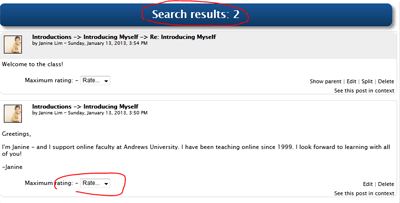
Then, when I am grading and viewing a student’s posts from the previous week, I look for number of posts and the quality of writing/thinking.
2013-01rateforums

After I’ve decided on a score, I click the pull down menu for rating on the student’s initial post. (Since that is usually the post with the most “meat”, I always put the grade on that post.)

Then the grade automatically is entered in the gradebook as well!

Your Turn

Reflect. How do you grade your online discussion forums? What works best for you? What other ideas do you have for ensuring quality participation in your online learning environment?

This post is Day 8 of the 20 Day Challenge to Teaching Interactive Online Courses.

Day 7: Setting Up Your Grading System

Now that your course is up and running, and hopefully all of your students/participants are functioning, it’s time to think about grading. Grading in an online course can be challenging on several levels. Students expect quick feedback in online courses. It is challenging to find time to grading. Grading online assignments may be initially difficult if you are used to grading paper assignments.

Managing Student Expectations

The first thing you should do is communicate clearly on what students can expect. When will you grade? How often will you grade? What is your late work policy? What should students do if there is a technical problem in submitting their assignment?

  • Timing of Grading. I like to grade weekly on a Sunday or Monday. I set aside a couple hours to carefully work through all the assignments from the past week, providing feedback, nudging students, updating grades. This works well for 8 week or semester long courses. For shorter courses, it may be better to grade twice a week. Find a pattern that works for you. Carve out the time needed.

    2013-01-13studentandcomputer
    Image from Microsoft Clipart
  • Communicate. Tell students your grading pattern. Include it in the syllabus. Mention it in your first few weekly emails. Sometimes, if when grading I find a problem that several students encountered, I will send a separate email informing students that I just finished grading, and addressing the issue or problem.
  • Late Work. It is very easy for students to forget they are taking an online course and stop turning in work. Students can easily slip into procrastination. Nip this in the bud right away! We highly recommend that you do not accept late work (except in extreme life/death/health situations). Be sure to email or call students who aren’t functioning to nudge them into participation and let them know consequences.

Set Up Your Grading Documents

  • Do you like to grade on paper? Create and print a chart/checklist for grading.
  • Do you like Excel? I always keep an identical copy of my gradebook on Excel (backup habits!). Once a week I update the grades online for the students.
  • What other ways do you prefer to grade? How can you make that work in an online environment? Make a system that works for your style.

Technology Tips

We use Moodle at Andrews University, but you can use Google to search for tutorials on your LMS. Search tip: “task LMS tutorial” i.e. “grading in Moodle video tutorial” if you want to see a video of how to do it.

Weekly Routine

I recommend that you build these activities into your weekly routine to supplement your daily routine.

  • Review and grade all new work.
  • Send your weekly email.
    • Give an overview of the upcoming topics.
    • Address any issues you discovered in grading / reviewing discussion forums.
    • Include a suggested schedule for the week.
    • Include an invitation to ask for help with at least two methods to contact you (i.e. Skype, email, phone).
  • Be sure all student emails from the previous week have been addressed and answered.

Your Turn

Reflect. What tips do you have for grading online courses? What strategies work for you? What do you include in your weekly routine?

This post is Day 7 of the 20 Day Challenge to Teaching Interactive Online Courses.

Day 6: Setting Up Student Success in Online Discussions

discussion
Class Discussion by Chicago Art Department

Your online discussion forums are a major part of the learning community in your online course. This is where students interact, engage in the content, and share with each other; just as they would in a face-to-face class session. In the first week of your course, you want to ensure students understand your expectations and are functioning at the level you expect. Here are some tips for nudging them to engage as you wish.

  1. Ask Questions. Nudge Students. As you read the discussion posts, watch for students who write too briefly, too vaguely, or just not quite on. Reply to that student’s post and graciously ask some questions. Probe. Nudge them to expound. Invite further thought.  This lets the students know you are reading the posts, and also publicly encourages all students to think more deeply.
  2. Email Students Individually. If a student is way off track in their discussion posts, sometimes it is best to address the issue individually. Recently in one of my classes, I had a student who couldn’t seem to follow directions. Sometimes her answers were posted in the wrong forum; sometimes she only had part of the required response. It took a few specific, directive emails to help her get back on track and find the directions. Sometimes one student dominates the discussion, replying to every single post. You may wish to encourage them to step back a bit and let others comment. These types of corrections may be best done individually.
  3. Model. There is a delicate balance between dominating the discussion and being “present” in the discussion. But often it helps students to see you model appropriate discussion. Show by example with thoughtful replies.

For Further Reading:

Your Turn

Reflect. What works for you in online discussions? What ideas would you add to this list?

This post is Day 6 of the 20 Day Challenge to Teaching Interactive Online Courses.

Day 5: Setting Up Your Online Teaching Space

Now that your students are logged in and happily functioning (hopefully); let’s think about your online teaching patterns and routines. Just as you want students to settle into a routine of participating and engaging with your content, you may want to have some structure and schedule to your online teaching. If you set aside specific times for teaching online, you will feel less like it is taking all of your time and causing constant interruptions.

Daily Routine

First, set up a daily routine for yourself. Over time, as you get accustomed to teaching online, you should be able to take care of your course in under an hour daily, with the exception of your grading sessions.

  • Login to your class.
  • Check who has logged in (until everyone is functioning)
  • Check the forums. Reply to students.
  • Send any tech issues to your online tech support.
  • Filter through your email and answer course related questions. Here are some options for managing course-related email:

Fend Off Interruptions

Your colleagues and family probably wouldn’t dream of interrupting you during a face-to-face class. However, it’s highly likely they will while you are teaching online. Here are some tips for fending off interruptions:

  • Make a sign for your office door: Do Not Disturb: I’m Teaching Online.
  • Teach your colleagues and family that this time is off-limits except for major emergencies.
  • Discipline yourself to do only online teaching work during this time. Ignore other emails.

Make a Space

Adjunct faculty in particular may wish to carve out a special space (as well as time) for teaching online. Maybe you’ll have a favorite tea handy, a special mug, a comfy chair. Make the space friendly and inviting for yourself as well!

Your Turn

Reflect. How do you protect your face-to-face teaching time? How do you protect your online teaching time? What ideas would you add to this list?

This post is Day 5 of the 20 Day Challenge to Teaching Interactive Online Courses.

Day 4: Initiating Communication: Phone Calls

frustrated computer user
Photo by Microsoft Clipart & iStockPhoto

One aspect of online teaching that feels different than face-to-face teaching is teacher-initiated communication with the student. In a face-to-face class, generally faculty appropriately expect students to be responsible: to show up to class, to ask if they need help. In a face-to-face class, it’s reasonable to assume that students can figure out where to find their class, how to open the door and come in, where to sit to participate in class, and how to find their instructor’s office to ask for additional help if needed.

However, students in online courses may not already know how to login, how to contact their teacher, how to get started. Even “tech-savvy” students may not be familiar with the university’s practices and learning management system (i.e. Moodle).

My philosophy is to spend the first two weeks of my online courses working hard to ensure all students understand expectations and are functioning well. This means initiating more communication than may be comfortable for faculty who teach mostly face-to-face. But in my opinion, it’s worth the extra effort, because students are more successful in the class. I have less trouble with incompletes or late work during the rest of the course.

Phone Students Who Haven’t Logged In

Therefore, I highly recommended calling students who haven’t logged in by the third day of class. I usually keep trying every other day or so until they are either functioning or have dropped the class.

  • Find Phone Numbers. Login to the Andrews University Vault
    • Choose iVue
    • Choose View Class Rosters and look up your course.
    • Click Profile next to the name of the student you need to contact. Their phone number should be in the top right.
  • Tips for the Phone Call
    • Be friendly and welcoming.
    • Ask questions. Find out why they haven’t logged in yet and what their plans are.
    • If they have any technical difficulties, transfer them or have them call tech support.
    • Be specific on what they need to do next to catch up.

Usually this is the only time I need to use the phone with my online students. I always offer the option to call me if they need a live conversation, but after everyone is functioning, they usually don’t need it.

Your Turn

Reflect. What do you think about this level of support to your students? What tips or suggestions would you add to this list?

This post is Day 4 of the 20 Day Challenge to Teaching Interactive Online Courses.

Day 3: Dealing with Late Registrations

Late registration in online courses can be extra challenging for both online students and their teacher. So how can we reduce the challenges? Today’s tips will be most useful for adjunct faculty; however full time faculty may find these tips helpful also.

Know the Deadlines

First, know when your university deadlines are and what the ramifications are for each deadline. At Andrews University, we have these registration dates:

  • Late Registration. A late registration fee goes into effect on the second day of the term (Fall/Spring). Students can still register but must pay the fee.
  • Drop/Add: The 10th calendar day of the term (Fall/Spring) is the last day to drop or add a course. This is the last day registration can occur. Students may withdraw up to this day without an entry on their permanent academic record.
  • Credit to Audit: The 9th calendar day prior to the last day of classes is the last day to change from credit to audit or withdraw from a course with a “W” on the permanent record.

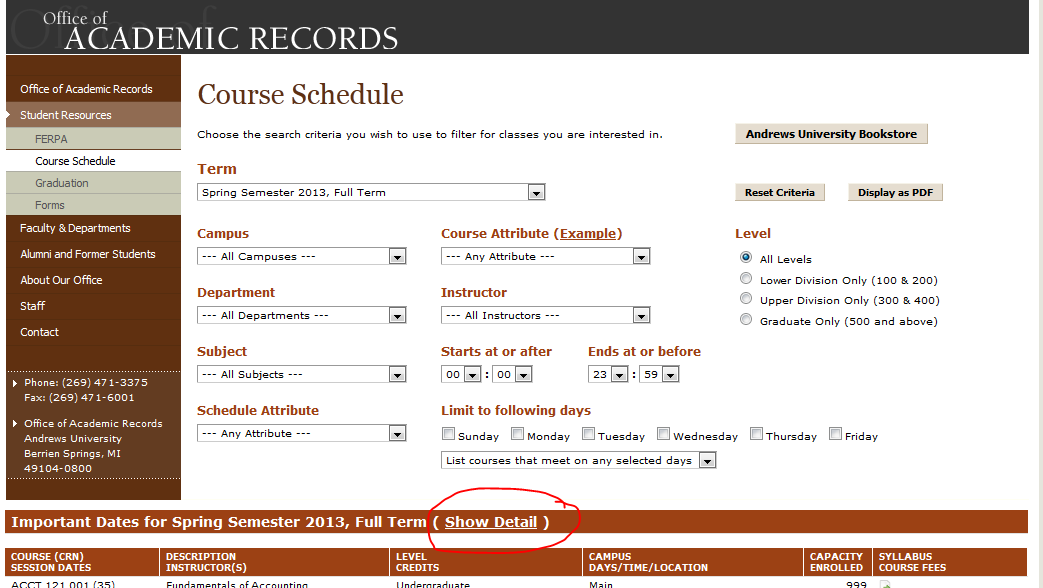
So how do you look up the dates for these? Navigate to the Andrews University Course Schedule, and click Show Detail (as shown). Make a note of these dates to assist you in communicating with students.

Keep an Eye on Late Registrations

Watch for late registrations, so that you can send them welcome information as soon as possible. You could check once or twice a day. Here’s how for Andrews University:

  • Login to the Vault
  • Choose iVue
  • Choose View Class Rosters and look up your course.

Communicate, Communicate, Communicate

As soon as a late registration comes in, send them your welcome email and week 1 email (if they are two different emails). I like to keep all my emails related to a course in one folder so I can easily and quickly reuse them.
Other information you may wish you communicate to late registrants includes:

  • A reminder of looming deadlines
  • If any course deadlines are past, how are you handling that? Do they get a 0? Do they have another deadline?
  • If you are giving grace for the student to catch up with the rest of the class, when does the grace run out?

It’s a good idea to keep an eye on their logins as well to ensure they are functioning in the class within a day or two of registration.

Your Turn

Reflect. How do you handle late registrations in your face-to-face classes? What other tips do you have?

This post is Day 3 of the 20 Day Challenge to Teaching Interactive Online Courses.