Author Archives: Janine Lim

eTech Conference, OH

Greetings eTech Conference participants! Here are the links and resources mentioned in my session today.

Collaborations Around the Planet

Read Around the Planet

Information for Collaborations

More Information

Church Next Book Review

I’m now starting work on my 5th competency:  Servant Leadership in Technology Facilitation and Collaboration. As part of my work for this competency, I’ll be sharing some book reviews.

Malphurs, A., & Malphurs, M. (2003). Church next : using the internet to maximize your ministry. Grand Rapids, MI: Kregel.

Summary
The book begins with a summary of the problem of American Christianity in decline, with statistics and descriptions of the problem. Next the authors discuss issues of reaching the buster and bridger generations (also known as Gen X and Gen Y). They propose a theology of change which makes a distinction between the functions of the church which are Biblically mandated (i.e. mission, worship, and the “together” mandates), and the forms of the church, which may change in different cultures and different times. In this section, the authors also describe the concept of postmodernism and how it affects how current generations view church and are reached by the gospel. Finally, the book ends with a review of the importance of the Internet, how the Internet works, and specifically how to use the Internet in ministry.

Principles Learned
Since I’m already very comfortable with the Internet, the sections explaining it were mostly review and I skipped over them. However they are well written for lay and clergy who are uncomfortable with the Internet. The main contributions from this book for me were the background principles that provide a “why” for using the Internet for ministry.

  • Some of the church’s functions which are mandated by the Bible include: teaching, fellowship, breaking of bread, prayer (Acts 2:42); community (Acts 2:44-45); worship and evangelism (v 47).
  • Examples of forms include meeting in house churches (Act 2:46, 8:3, 12:12), meeting in the temple (Acts 2:46).
  • Forms can be understood as the method of ministry. Paul set an example of “becoming all things to all people” and adapting to the needs of those he meant to reach (1 Cor 9:22).
  • Forms may fit along a continuum of legalism to liberty to license. Legalism puts restrictions on the church that aren’t found in Scripture (i.e. what time to meet). Liberty is freedom within God’s law/Word. License removes any Biblical restrictions.

These principles and ideas form the basis of a theology of change and therefore reasoning on why to use the Internet in ministry.

Ideas Gleaned
I’m already involved in my church’s web ministry (www.pmchurch.org) and (www.pmchurch.tv) and we are doing many of the things listed in the book. On page 131, the authors list some ways that churches are using the web for ministry:

  • Encourage visitors to attend their church (we’re doing that)
  • Post mission statements, sermons, text concerning faith (we’re doing that)
  • Links to denominations and faith-related sites (we’re now discouraging this due to link-rot)
  • Links to Scripture studies or devotional material (we’ve dabbled in this and could revisit it)
  • Post schedules, meeting times, communications (yes, email announcements, but need to get more people to sign up for the listservs)
  • Post photos of events (mixed success on this; it’s hard to do consistently and keep fresh)
  • Post youth group material (we’re doing that)
  • Material promoting missionary work (our TV ministry does this)
  • Seek volunteers for congregational work (new “Get Involved” section does this)
  • Provides space for prayer requests (we’re doing this)
  • A sign-up feature for classes/programs (we do this for the women’s ministry programs)
  • Allows online fundraising (not doing this with very specific reasons why)
  • Webcasts worship services (we’re doing this, but not live)
  • Provides discussion spaces for study or prayer groups (not doing this)

As I read through the ideas, I realized that I’d really like to see us find ways to minister to those getting the podcasts. Is there a way we could connect them in to online small groups? We have some other seminars that would make great little online group studies as well. I wonder how the FAST scripture memorization group is doing with their new online training. I think we could develop some cool things with this, if a few people had time to commit to it. I wonder if anyone would pay for it to help cover the cost? Or if donations would cover the cost? It’s certainly something to keep considering.

This was a useful book to explain WHY a church should be using the Internet, and had suggestions for even veteran online churches.

Day 19: Now, Participate in Megaconference Jr.

20 Days to Being a Better VC Coordinator

Now that you’ve been through this little training experience, it’s time to join the global learning community!

Megaconference Jr. is one of THE videoconferencing events of the year for K12 videoconferencing. It’s a 12 hour videoconference, facilitated by students, with student presenters featured. An incredible global experience, a chance for networking with other schools, and an opportunity for learning what other schools are doing with VC.

What to Expect on February 19, 2009

Because this is a large videoconference with many sites participating, it’s quite different than point to point experiences. So make sure you come into the experience with appropriate expectations.

  • You will see 30 minute sessions on all kinds of content and topic areas. The presentations come from elementary, middle, and high school students.
  • You will see a variety of presentations styles and tools. Some you’ll learn best practices; others you’ll have ideas on how to improve the presentation. Take it as a learning experience for everyone.
  • You will NOT have perfect audio and video. You should lower your expectations for the video quality.  This is partly due to the huge number of sites connecting and the variety of bandwidth capacity represented.
  • Megaconference increases the opportunities for global education. So INCREASE your expectations for global learning, and increase your patience and tolerance for international connections.
  • You will also see that some participating sites are new to VC and don’t know how to behave. i.e. MUTE your microphone in a multipoint. Take it as a learning lesson of what not to do. And make sure you are MUTED unless you’ve been called on to ask a question or interact.

Make the Most of Your Participation

  • Set up Megaconference in your library and have different classes come in and out throughout the day as they have time. Take the schedule and share it with your teachers. But warn them to be flexible because sometimes Megaconference gets off schedule due to the realtime nature of the event.
  • Make it an event to showcase the possibilities. Invite teachers and administrators to view.
  • Offer refreshments.
  • Have prizes. Make a geography game of it. Who can identify the location of the presenting site?
  • Hang up a large world map and have students mark the locations of the sites presenting throughout the day. Print the participants list (after registration closes) and have students find and mark the participating sites on the map.
  • If you’re not an interactive site, pretend that you are. Have the students answer the questions (but stay muted!).

Registration Choices

  • You can sign up to be a view only or “not interacting” site. Some schools prefer this for getting their feet wet.
  • Or you can sign up to be an interactive site. 3 schools get to interact in each session. The interactive spots go quickly, so hurry if you want to do this.

Comment Challenge

  • So, take a moment now to sign up! (If you usually register for VCs through someone else, you may want to check with them first on how you should register.)
  • If you have a story or suggestion for participating in Megaconference Jr., please comment and share!

Day 18: Uh Oh, It Doesn't Work!

20 Days to Being a Better VC Coordinator

One of the scariest things about videoconferencing is when it doesn’t work and you have a classroom of students waiting. Yesterday Roxanne gave you some great tips for accessing your lifelines. Today, we’ll examine the most common problems in a videoconference and give you tips for solving them. This is actually part of a training that I conduct for my coordinators, and we try to simulate each problem during the training.

First, there are four parts to a successful videoconference: sending video, receiving video, sending audio, and receiving audio. Most of the common problems related to one of these four parts.

The solutions under each problem are listed in order. The top ones are the most common solutions to the problem.

TV is Black / I Can’t See / I See Black / I See Blue

  • Check the TV/monitor/projector. Is it on and is it connected correctly? Some of my coordinators keep a picture or drawing of how all the cables are supposed to be connected.
  • Check the monitor. Is it on the right channel? Make a note for yourself on which channel it should be.
  • If you were able to see the dialing screen/menu before you connect, then it’s not your TV/monitor/projector. A blue or black screen is often a firewall problem on either end of the call. Try one of these test numbers to make sure you can connect outside your district on your own. Have the other site try connecting somewhere else too. If you can both connect to other places but not to each other, it’s probably a firewall problem. If you have access to someone with a bridge/MCU, ask them for help (usually at your educational service agency).
  • Once in a while the flat screen TVs won’t cooperate. If so, unplug the power, wait, plug it in.

Audio: I Can’t Hear

  • Check your TV/monitor volume. Check your videoconference system’s volume too. Both should be about in the middle (if your system uses both).
  • Have the other side check their microphone. If you see a Far End Mute icon, you know their microphone is muted. (This only shows up in point-to-point calls). Ask them to unmute. Tell them you can’t hear. Have them nod their head or wave if they can hear you.

Audio: They Can’t Hear Me

  • Check your microphone. Are you muted? Check your screen – usually you’ll see an icon if it is muted. Or Polycom microphones are muted when the light on it is red. Unmute so the far site can hear you.
  • Their TV volume might be turned down. You may have to write them notes on a sign to hold up in front of the camera or write on paper under the document camera. (Or call them on the phone.)

They Can’t See Me

  • Have them check their monitor/projector/TV. Is it on & on the right channel?
  • It may be a firewall problem on their end. See “I Can’t See” above. Have them try connecting to the one of these test numbers. They should determine if they get a picture and then call you back again and report. If they can’t see a picture on your system or the test site, they should talk to their tech person. If you can both connect to other places but not to each other, it’s probably a firewall problem. If you have access to someone with a bridge/MCU, ask them for help (usually at your educational service agency).

Call Rejected or Busy Signal or Call Rings & Rings

  • If you call and get a “call rejected” error, usually the other person is already in a call.
  • If the call rings & rings, usually something in the network between you & the other site is not allowing the call to negotiate. Both sides should try a test site. If your test call just rings & rings, then it’s not connecting through firewalls. If you have access to someone with a bridge/MCU, ask them for help (usually at your educational service agency).

Alerts: What Do They Mean?

  • IP Network: If this is down, then you don’t have a live Internet connection. Try another Ethernet jack in the room. Using a spot where a computer was connected and working usually guarantees a good connection.

When All Else Fails, Reboot or Redial

  • If you have a lot of connection problems, sometimes redialing will help clear it up.
  • If nothing is working, reboot the camera. Turn the camera off (reach up!!), wait, turn it back on.

Polycom Specific: “Flippy-Do-Button”

My schools all have Polycom endpoints, and another common problem is when you accidentally get yourself in the big screen and the far site in the picture-in-picture. How do you switch it back?

This happens with the button that I call the “flippy-do-button”. I’m sure there’s a more technical term! 🙂 On a VSX7000, if you press the Camera button while you are in a call, you’ll see an icon with two arrows pointing around. If you select it, you’ll swap the far and near pictures. It’s easy to change it accidentally by pressing the camera button and then 1 or the enter key. To get it back, just press Camera, 1. Whew!

Comment Challenge

  • Take this Word file with basically the same information presented here. Fill it in with your favorite test site number and your videoconferencing support number. Add the channel for your TV/monitor (if applicable). Then tape it to your videoconferencing cart in a prominent location.
  • Please comment and add any other troubleshooting tips you have.

"A Collaboration Nation"

In an “open letter to our government leaders,” Wainhouse Research recommends that the United States aim to be a “collaboration nation.”

The impact of turning the United States (or any other country) into an e-nation with an extensive telecommuting program could be sensational in turns of its high return, low cost, low risk, and immediate effect. Replacing 20M automobiles (a fraction of what is on the road today) with hybrids would cost approximately $500 billion while the investments to enable 20M telecommuters would be on the order of $2.5B. Taking 20M cars off the roads on a daily basis would save on emissions while also lightening the load on our nation’s highways.

A federal-government lead effort to become a “collaboration nation” should go a long way towards ridding our dependence on foreign oil and liberating our foreign policy, improving the environment, and helping the United States regain its leadership position in the global economy.

Read more here. What do you think? Visionary? Extravagant? Crazy? Are we too stuck on face to face communication? What do YOU think? Please comment….

ASK: When Donkeys Fly

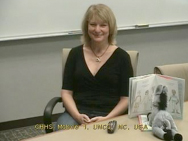
Ginger HodgeToday we’re trying out a new author for an ASK program on her book When Donkeys Fly. We have a variety of 1st-3rd grade classes from Macomb and Berrien areas participating. Ginger Hodge lives in South Carolina, and we found a site for her to videoconference from at the University of North Carolina at Charlotte.

Here’s a sample of the questions from today. In each session, the classes often ran out of questions. Ginger was good at short concise interesting answers.

  • Have you ever done any of the things that the girl in the book wanted to do?
  • Where did you get the idea for the book?
  • How long did it take to write the book?
  • How old is the dog on the cover?
  • What is your favorite page in the story & why?
  • Why did you put a donkey on every page?
  • What do you like about being an author?
  • We love your book. What made you want to become an author?
  • What should we do when someone tells us, “when donkeys fly”?
  • Do you have a special writing place?

At the end of the program, Ginger surprised the kids by singing a song for them based on the book. The kids loved it! We’ll definitely be scheduling more of these sessions!

New Developments in Desktop VC

Recently, thanks to the Megaconference Listserv, I found another blog with reviews of technology, including videoconferencing tools: TelBitConsulting Technical Blog. This blogger admits a bias to desktop VC, which shows the corporate focus. However, I still want to see a desktop VC system morphed with Promethean or similar interactive whiteboards to bring curriculum videoconferencing to all classrooms.

Polycom has come out with a new CMA product, which I want to look into further when Read Around the Planet calms down a little. TelBitConsulting has done a review of CMA and other new Polycom products. What caught my eye was this quote:

The CMA Desktop is meant to work most efficiently within the corporate environment.  Telecommuters connect via a Virtual Private Network (VPN) but can do so from Starbucks if they so wish.  The downside is that external people with H.323 endpoints, like myself, are harder to reach, and the CMA Infrstructure may not be for us loners.

I certainly evaluate all these new products on how well they connect to all the H323 anythings out there – like we do for Read Around the Planet. Sounds like CMA might not work well for these types of collaborative connections, but need to investigate further.

The other new desktop product that has caught my interest in Vidyo. I ran across a Google ad one time wandering on the Internet. I’ve requested some datasheets and intend to learn more about this too (after RAP matching is done!). However, in the meantime, TelBitConsulting has done a review on Vidyo too. It seems that these new models are putting the money & effort into the network infrastructure and using the distributed concept like Skype. Vidyo has a gateway that hooks to h323. Not sure if this is a good plan for K12 curriculum videoconferencing or not, but I intend to explore it further.

Day 15: Kid Producers

20 Days to Being a Better VC CoordinatorHow much do you let students help you with videoconferences? For this challenge, let’s think about some appropriate ways to involve students in the production of the videoconference.

Microphone

One of the most simple ways to involve students is to have them in charge of muting the microphone. I’ve seen this work well in a couple of ways (about 2nd grade and up):

  • A trusted student is responsible for muting and unmuting in a multi-point conference such as an ASK program or an interview with an expert.
  • OR, as each student comes up to the microphone, they press the button on the microphone, state their question or comment, and then press the button again.

I’ve seen these examples using with the button on the Polycom microphones (instead of giving the student the remote control). Those of you using other systems, how does this work for you? Please comment and share!

Cameras and More

Some students prefer to be off camera, while others love to “ham it up” with strong voices and great announcing skills. Encourage this diversity by involving your students in different ways during the videoconference. (Thank you Kim Pearce for these ideas to organize students with production jobs.)

  • Teach the students to use already set presets, or even how to set the presets. Have a student or two responsible for the switching presets. This is helpful when you have different visuals to show. Watch the student presentations in the middle of this MysteryQuest video for examples.
  • Build on the visual nature of videoconferencing communication, and have an art crew for the backdrop, a lighting crew, and stage hands. Let these visuals from Dew ISD, TX inspire you:

Comment Challenge/Comment

  • If you haven’t allowed students to help with a videoconference yet, which of these tips will you try first?
  • Do you have any other tips for involving students in the production of the videoconference?

Comment and tell us about it!

Kid2Kid Videoconference Connections Start Jan. 26

Just a quick plug for some upcoming classes you might want to join!

Kid2Kid Videoconference Connections is a six week in depth experience in making collaborations happen. Appropriate for all grade levels. Read more online here. It starts January 26 and runs through March 6.

Also, I still teach one class not related to videoconferencing – Technology in the Early Elementary Classroom. It runs January 26 through March 20 and is an in depth look at various technology tools appropriate for young students. There is a track for TuxPaint, Pixie, KidPix, and digital cameras. Some participants follow one track, some try out each track.

For both of these classes, we’ll take registrations through January 27. Join us for an interactive learning community!

Day 14: Questions, Questions? Questions!

20 Days to Being a Better VC CoordinatorThis week, we’ve been giving you tips to improve the quality of the interactions in your videoconferences. The question and answer time can be when the videoconference spirals out of control, or it can be a profitable learning experience.

Has this ever happened to you during Q&A time?

  • No one can think of a question until after you disconnect.
  • All the students start asking questions at once.
  • All the students answer the question at the same time and other class can’t hear the answer.
  • The students ask only questions such as, How long is your recess? and what are your favorite subjects?
  • The students can’t think of questions; so they ask the same questions that the other class just asked them.

Let’s Improve Those Questions

    1. Before the connection, learn a little about the location of your partner class. As a class, brainstorm some questions to learn more based on what you learned. For example, let’s say you’re connecting to a class in Midland, Michigan, which has a Dow Chemical Plant. Students might ask, how many of your parents work on the plant & what jobs do they do? Or, how does the chemical plant impact your community?
    2. During the connection, after each class has done their formal presentation, mute for 2 minutes to brainstorm questions. What could you ask the classes based on their presentations? What else do you want to know? You might even have some feedback/compliments to share with your partner class. For example, “We liked your PowerPoint presentation. Was it hard to find pictures for it? Where did you look?”
    3. Designate 3-5 students on a “question answer team.” These students are responsible for answering the questions from the partner class and make sure that one student answers at a time.
    4. Set up the question. Have the student(s) start with, Hi my name is _____. Then lead the question with a statement. For example, In our class, we have horses, dogs, cats and a lizard as pets. What pets do you have?
    5. When facilitating a multipoint session, don’t say, “Any questions?” Always call on schools by name (in the same order) so they know who should be talking.

    Comment Challenge/Comment

    • Try out one of these tips in your next videoconference. Tell us how it went.
    • Do you have any other question tips?
    • Do you have any stories of great questions students have asked?

    Comment and tell us about it!