Tag Archives: Change

Training Students on VC

I was reviewing two documents today – Owston’s 2007 study on the factors for sustainable innovation of technology, and Anderson and Rourke’s (2005) VC literature review.

Owston includes in his “essential conditions” the student support of the innovation. Anderson and Rourke find a “promising practice” in “student empowerment through operation with the technology.”

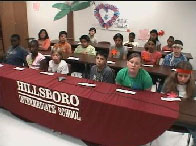
It just occurred to me that I haven’t thought too much about how to get students excited about videoconferencing. Mostly because they usually are automatically excited about it.

But haven’t you ever noticed students who are quite nervous about videoconferencing and want to stay off camera? I have noticed this  especially with middle and high school students.

So, here’s my question to all of us. How are we making sure students feel comfortable with videoconferencing before they go into a content specific VC? Arnold, Cayley and Griffith (2004) have some interesting ideas for “first time VCs”. Our connections with Mexico lately have been very low-key informal events. Our connection on Friday with the seniors in TX certainly broke the ice for students on both sides.

What do you think? Should we think about this more? Are there some more specific things we can do to make sure there is student support for VC in our schools? Please comment.

Day 20: Just Do It

20 Days to Being a Better VC CoordinatorNow we have come the the last day of our challenge. We hope that you have learned some tips to help you coordinate videoconferencing within your building and assist your teachers.

Our last challenge to you is “Just Do It”. Many times we find that people wait until every little detail is perfect until they begin to try to use the technology. Once you know that your equipment is operational, get started doing something. Find a teacher that is curious and adventurous and ask what he or she is teaching during the spring semester and find a connection that fits into their curriculum. Before you know it, you will have active videoconference participation.

We have heard from several of you that you have enjoyed reading along with us this month. Let us know if we have missed things or if there are other topics that you would like us to address. We have learned much about collaboration during this blogging adventure and hope that you have learned along with us.

Comment Leave us a note about what you learned or how you plan on using this information. If you are a “first time commenter”, click the link that says Comments and post your thoughts for us.

How to comment on my blog:

janine-blog

How to comment on Roxanne’s blog:

comment-on-rox

May the connection begin on time.
May the batteries in the remote not run down.
May the video move fluidly and the audio be a robust sound.
Here’s wishing you many quality curriculum connections in the months to come.

All the best,
Janine and Roxanne

Day 18: Uh Oh, It Doesn't Work!

20 Days to Being a Better VC Coordinator

One of the scariest things about videoconferencing is when it doesn’t work and you have a classroom of students waiting. Yesterday Roxanne gave you some great tips for accessing your lifelines. Today, we’ll examine the most common problems in a videoconference and give you tips for solving them. This is actually part of a training that I conduct for my coordinators, and we try to simulate each problem during the training.

First, there are four parts to a successful videoconference: sending video, receiving video, sending audio, and receiving audio. Most of the common problems related to one of these four parts.

The solutions under each problem are listed in order. The top ones are the most common solutions to the problem.

TV is Black / I Can’t See / I See Black / I See Blue

  • Check the TV/monitor/projector. Is it on and is it connected correctly? Some of my coordinators keep a picture or drawing of how all the cables are supposed to be connected.
  • Check the monitor. Is it on the right channel? Make a note for yourself on which channel it should be.
  • If you were able to see the dialing screen/menu before you connect, then it’s not your TV/monitor/projector. A blue or black screen is often a firewall problem on either end of the call. Try one of these test numbers to make sure you can connect outside your district on your own. Have the other site try connecting somewhere else too. If you can both connect to other places but not to each other, it’s probably a firewall problem. If you have access to someone with a bridge/MCU, ask them for help (usually at your educational service agency).
  • Once in a while the flat screen TVs won’t cooperate. If so, unplug the power, wait, plug it in.

Audio: I Can’t Hear

  • Check your TV/monitor volume. Check your videoconference system’s volume too. Both should be about in the middle (if your system uses both).
  • Have the other side check their microphone. If you see a Far End Mute icon, you know their microphone is muted. (This only shows up in point-to-point calls). Ask them to unmute. Tell them you can’t hear. Have them nod their head or wave if they can hear you.

Audio: They Can’t Hear Me

  • Check your microphone. Are you muted? Check your screen – usually you’ll see an icon if it is muted. Or Polycom microphones are muted when the light on it is red. Unmute so the far site can hear you.
  • Their TV volume might be turned down. You may have to write them notes on a sign to hold up in front of the camera or write on paper under the document camera. (Or call them on the phone.)

They Can’t See Me

  • Have them check their monitor/projector/TV. Is it on & on the right channel?
  • It may be a firewall problem on their end. See “I Can’t See” above. Have them try connecting to the one of these test numbers. They should determine if they get a picture and then call you back again and report. If they can’t see a picture on your system or the test site, they should talk to their tech person. If you can both connect to other places but not to each other, it’s probably a firewall problem. If you have access to someone with a bridge/MCU, ask them for help (usually at your educational service agency).

Call Rejected or Busy Signal or Call Rings & Rings

  • If you call and get a “call rejected” error, usually the other person is already in a call.
  • If the call rings & rings, usually something in the network between you & the other site is not allowing the call to negotiate. Both sides should try a test site. If your test call just rings & rings, then it’s not connecting through firewalls. If you have access to someone with a bridge/MCU, ask them for help (usually at your educational service agency).

Alerts: What Do They Mean?

  • IP Network: If this is down, then you don’t have a live Internet connection. Try another Ethernet jack in the room. Using a spot where a computer was connected and working usually guarantees a good connection.

When All Else Fails, Reboot or Redial

  • If you have a lot of connection problems, sometimes redialing will help clear it up.
  • If nothing is working, reboot the camera. Turn the camera off (reach up!!), wait, turn it back on.

Polycom Specific: “Flippy-Do-Button”

My schools all have Polycom endpoints, and another common problem is when you accidentally get yourself in the big screen and the far site in the picture-in-picture. How do you switch it back?

This happens with the button that I call the “flippy-do-button”. I’m sure there’s a more technical term! 🙂 On a VSX7000, if you press the Camera button while you are in a call, you’ll see an icon with two arrows pointing around. If you select it, you’ll swap the far and near pictures. It’s easy to change it accidentally by pressing the camera button and then 1 or the enter key. To get it back, just press Camera, 1. Whew!

Comment Challenge

  • Take this Word file with basically the same information presented here. Fill it in with your favorite test site number and your videoconferencing support number. Add the channel for your TV/monitor (if applicable). Then tape it to your videoconferencing cart in a prominent location.
  • Please comment and add any other troubleshooting tips you have.

Day 15: Kid Producers

20 Days to Being a Better VC CoordinatorHow much do you let students help you with videoconferences? For this challenge, let’s think about some appropriate ways to involve students in the production of the videoconference.

Microphone

One of the most simple ways to involve students is to have them in charge of muting the microphone. I’ve seen this work well in a couple of ways (about 2nd grade and up):

  • A trusted student is responsible for muting and unmuting in a multi-point conference such as an ASK program or an interview with an expert.
  • OR, as each student comes up to the microphone, they press the button on the microphone, state their question or comment, and then press the button again.

I’ve seen these examples using with the button on the Polycom microphones (instead of giving the student the remote control). Those of you using other systems, how does this work for you? Please comment and share!

Cameras and More

Some students prefer to be off camera, while others love to “ham it up” with strong voices and great announcing skills. Encourage this diversity by involving your students in different ways during the videoconference. (Thank you Kim Pearce for these ideas to organize students with production jobs.)

  • Teach the students to use already set presets, or even how to set the presets. Have a student or two responsible for the switching presets. This is helpful when you have different visuals to show. Watch the student presentations in the middle of this MysteryQuest video for examples.
  • Build on the visual nature of videoconferencing communication, and have an art crew for the backdrop, a lighting crew, and stage hands. Let these visuals from Dew ISD, TX inspire you:

Comment Challenge/Comment

  • If you haven’t allowed students to help with a videoconference yet, which of these tips will you try first?
  • Do you have any other tips for involving students in the production of the videoconference?

Comment and tell us about it!

Day 13: Who Are You? and Where Are You?

20 Days to Being a Better VC Coordinator

Videoconferencing is a communication technology. “I know that,” I hear you say. But think about this. When was the last time you were in a videoconference and you didn’t know the name of the person you were talking to? I bet it was recently. It happens all too often!

Introductions

So for today’s challenge, let’s think about some tips to polish your introductions.

  1. Introduce yourself soon after you connect. Roxanne reminded us of this yesterday. Say, “Hello, this is ______ from ______ school in __________.” We want to know who you are and where you are!
  2. In large discussions with multiple sites, before stating your perspective, begin with “I’m _____ from _____ and my comment is…”
  3. Be sure to say the city and state. Sometimes it’s very helpful to include a frame of reference. For example, you probably don’t know where Berrien Springs is! So, I say, I’m Janine and I’m from Berrien RESA in southwest Michigan about an hour and a half around the lake from Chicago. Now, don’t you have a better picture of where I am?
  4. Prominently display a sign to identify your location.
Student Introductions

If you participate in many collaborations with other schools, here are two tips for making these introductions quick and easy.

  1. Create a little script that can be used for each videoconference. Write it on a note card and keep it by the videoconference cart/system. Tell us something unique about your area so we can get to know you. The next time you participate in a collaboration (Read Around the Planet?), hand the card to a student to read!
  2. Create a little PowerPoint with three to five slides starting with a map of your country, a map of your state/province, and pictures from around your town/city. Use a star or other large marker on the maps to show where you are. Every videoconference is an opportunity to reinforce geography!

Comment Challenge

Your challenge for today is to write your introduction script on a notecard or make a little PowerPoint or slideshow with pictures about your community. Have a couple students help you! Tell us what you included in it.

Comment Comment

What other tips or stories do you have on introductions?

Day 10: Assisting Teachers with Preparation

20 Days to Being a Better VC CoordinatorA critical part of a successful videoconference is preparation. So how can you help make sure it happens? Here are some ideas.

Preparation Lesson Plans
Many programs have preparation materials which are very helpful.

  • When the program is scheduled, ask the teacher if they received the materials.
  • A week or so before the program, ask the teacher if they were able to use the materials. Depending on how often you have VCs, you could plan an hour or so once a month/week to check in with the teachers who have upcoming VCs and see if they are getting the students prepared.
  • Some coordinators, depending on their position and other responsibilities, are able to actually do the preparation lessons with the students. Don’t do this more than once; encourage the teacher to team teach the next time; then maybe they can do it on their own. You’ll find it less stressful if you can move your teachers towards independence.

Practicing
When classes are presenting, encourage them to practice.

  • Practice in the classroom.
  • Practice with a fake mic.
  • Practice with the videoconference system.
  • Practice with the visuals. Make sure they are clear enough!

When two of my schools were starting out with VC, the library aides took library time to connect to each other and have each student say a couple sentences on camera. The two classes just took turns until all the students had a turn. Every class participated. This broke the ice for all the students and teachers in each school!

Explain VC to the Students Just Before the Program
I encourage each of my coordinators to make sure students and teacher understand VC before the connection. Usually just a 2 minute little introduction before the program starts. Include:

  • Explain the video & audio quality – it’s not broadcast quality TV!
  • Explain where the mic is and that it can pick up rustling sounds.
  • The people at the other side can see & hear them.
  • Remind the students to speak up loudly and clearly.
  • Encourage them to represent their school with best behavior!

We’ll talk about preparing questions and involving all the students in future posts.

Other preparation tip lists online:

comment1 Challenge Choices:

  • Find an upcoming videoconference on your schedule and ask the teacher how they are preparing for the videoconference. See if they need any assistance.
  • If preferred, write a little outline for your “speech” for before a videoconference.

comment1 Comment:

  • How do you help teachers prepare for a videoconference? Any other tips?
  • What is hard about helping teachers prepare? Where do you get stuck?

Day 9: Cancellations

20 Days to Being a Better VC CoordinatorGuest blogged by Roxanne Glaser

Sometimes life interrupts the best laid plans. You have worked with teachers and found content that fits with their curriculum. You submitted the paperwork. You have conducted test calls. You follow up with the teacher and you hear this, “I cannot do that videoconference.” What do you do?

Let’s start with what not to do. Don’t yell. Don’t take it personally. Breathe in. Breathe out.

Here are five tips for how to handle a cancellation

  1. Find out why the teacher is canceling.
  2. If the teacher is nervous or unsure about the event, contact facilitator or content provider for reassurance.
  3. Contact the content provider or facilitator of the session to find out if adjusting the schedule is possible. (NOTE: Be sure to read the cancellation policy of a content provider when you book the session. Some will charge a cancellation fee.)
  4. Try to find another teacher in your building to replace the class that is canceling.
  5. Communicate to all involved that the connection will not take place and diplomatically explain why.

comment1 Challenge: Add a tip in the comments section that you have used in the past when a teacher cancels a connection.

The Joy in Their Eyes

Last year, a teacher from one of my poorer and more urban districts took the Planning Interactive Curriculum Connections class and got really excited about videoconferencing! They weren’t included in our recent RUS grant due to their high population, and so last spring she took the kids over to the high school to access videoconferencing several times. One time they walked through the snow, and each time they took a bus over they were struggling to find funding to get to the high school.

One of the programs was the ASK program with the book Ice Bear and Little Fox, and the students talked to Rebecca at the Buffalo Zoo. The kids loved it and afterwards the teachers found out two of the students had never been to the zoo!

Then, another teacher from this same school took the Jazz class this summer. With such enthusiasm and dedication from the school, what could I do but figure out how to get a unit to them!

Thankfully, due to closing a building in another district, I was able to reclaim an old Polycom Viewstation purchased by grant funds that we applied for. (Those things are like the energizer bunny – they just keep going!!)

Last Friday, my supervisor and I went out to deliver the Viewstation and discuss the details. We did a contract similar to the RUS grant contracts. They laughed when I said you need to do at least 5 VCs a year. I KNOW they won’t have a problem at all meeting that goal! And they have more than half of the required professional development done already.

So that was pretty exciting. It was fun to see the joy in their eyes over the opportunities they can now bring to their students!

VC7 – Brain Based Learning Techniques

James Tapankov: The VC7 – Brain Based Learning Techniques in VC
At Elevate 2008

This session will explore the use of brain-based learning techniques in the videoconferencing environment. The VC7 is a list of seven approaches that are guaranteed to enhance the level of interactivity and value to every VC, regardless of its focus. The session will involve the history of the development of the VC7, from its beginning roots to the current project with the VCRLN (Videoconferencing Regional Leads Network) to develop an online multimedia reference to highlight effective aspects of learning via VC.

I’ve been really looking forward to this session since I read the blurbs for the sessions at Elevate. I’m so interested in what the 7 things are!! James doesn’t have this information online anywhere that I could find, but last night at dinner he gave me permission to blog his session, so you too, can learn about the VC7.

James’ work is influenced by that of Marcia Tate of Developing Minds and Stephen Covey, and Viktor Flankl – Man’s Search for Meaning. I’m impressed with the connection and grounding in theory.

His handout has room to write down the 7 things, room to scribble and draw. He does this session via videoconference as well.

Keys to Brain-Based Learning

  • Relaxed alertness
  • Orchestrated immersion in complete experience
  • Active processing

#1. Make it meaningful.

Get everyone involved ASAP. Give meaning right away. Why are we here? Allow input into the “how”. Have everyone to something in the first 5 minutes instead of listening. Aim learning at solving problems together. Process learning in multiple ways. Connect life experiences. Build in reflection.

#2. Get them active.

Build in reasons and opportunities to: move. talk. draw. role play. play games. sing/dance. SHARE. “The last thing you want is a videoconference that could be recorded and sent out and it would have the same effect.”

#3. Keep it fresh.

Chunk it up, change it up. Take timely breaks. Give things to do OFF camera. Do unexpected things. Plant a “mole”. Change participant perspectives. Use new tools.

Marcia’s rule – maximum length of an activity: average age – up to 20 age/minimum. Grade 5 students who are 10, then chunk 10 minutes. Adults, 20 minutes max.

Example of unexpected things. He had some “moles” to pull out this snack that he likes – and everyone would taste it. Garlic sauce covered pretzels.

#4. Engage the senses.

Use A/V cues. Involve peripheral learning. Provide physical props. Use music. Use smell/taste. Use touch.

Visuals around and behind you but you don’t actually reference. This goes along with my idea to crunch MysteryQuest to an hour and change some of the clues to being nonverbal – like the climate and human environment interaction clues.

How do you convey the other senses when VC only conveys sight and sound?

He talked about the project he did with Santa and how they used clues. One of the squares in a multipoint is a sign that said “everybody scream” and after they did, Santa came on screen. When the grinch came on that same screen they hand to ring their bells and sing a song to make him go away. They used a green screen to transport Santa in & out of the different places. Like Santa got stuck in the dungeon and they had to answer questions to get him out.

#5. Make it personal.

Connect a camcorder. Tell (appropriate) personal stories. Give things to do OFF camera. Do unexpected things. Plant a “mole”. Change participant perspectives. Use interactive digital tools.

He thinks the robotic movements of the camera are impersonal, so he likes the camcorder instead hooked into the aux ports. You can really quick zoom in on what is going on that you want the other site to see. Of course you have to have enough bandwidth to handle all the motion.

When you build relationships with people, you want to see their reactions. Kids love to be behind the camera running it. Hmm. I wonder if a camcorder plus PVX plus Promethean is where I should be heading with my “every classroom” project

#6. Engage their emotions.

Use music to direct/adjust mood and focus. Create opportunities for empathy. See first five points. James wants us to contribute too so that these don’t repeat quite so much.

#7. Celebrate the experience.

Encourage/reward risk. Enjoy your time together. Be silly when you can. Highlight progress made. Provide opportunity afterwards.

Celebrate what happens at the end of things – like the big bang finale in Jazz.

Low threat / high challenge for brain based learning.

So many “one-offs” happen, so provide an opportunity to keep connecting.

Presentation Tips

  • Play music while the people talk. When the music stops, everyone stops talking.
  • Use a parking lot to write down questions and comments for afterwards.
  • “I’d love to hear 3 comments.” and he gave away 3 pens.

James has set up a wiki to continue the conversation and wants us all to contribute and extend these ideas. Gotta add this to the Read Around the Planet materials for this year!