Category Archives: Technology

Thinking about Vidyo

Still cleaning out draft blog posts…

In March I had a long conversation with a representative from Vidyo (a software company) because I want to understand where videoconferencing is going, and what options may be coming down the pike to do curriculum videoconferencing on a scale in every classroom. Before you read my scribbles, review this:

Trend

  • There is a movement to push the processing to the endpoint instead of the MCU: i.e. the Vidyo endpoint (desktop software).

What is SVC?

  • SVC is scaleable videoconferencing – but it doesn’t seem to connect to other svc vendors
  • Vidyo licensed their technology to Google and Cisco, but those are then proprietary, so they don’t connect to each other. I don’t really understand that yet.
  • Vidyo is using annex 6 part of the h.264 standards suite

How Do You Connect?

  • Connecting to other sites is done with a guest link (sending a URL). It uses up a $5 software install for them to download and install it, or if they have it already it doesn’t cost anything…  (you prebuy the software licenses).
  • To call in with H323 you dial alias@IP of of the gateway.
  • To call out to an H323 site it’s extension plus IP of the other site.

Cost Structure
I probably shouldn’t share the costs they gave me because they will change. But here’s what you’re looking at:

  • A per seat per year cost
  • A gateway server to connect to H323
  • A software license for the number of ports you want / multipoint calls
  • A portal server to manage the seats and licenses

I’m not sure about Vidyo for curriculum videoconferencing. There’s a lot of content providers out there via H323 that you would need the gateway server for; and if just a school bought that, you might as well get a nice H323 videoconferencing cart for the cost of the gateway server. But would it make sense to do this at a regional level? For a regional just getting started with VC? I don’t know.

Have any of you tried Vidyo and what do you think of it?

Keeping Track of Endpoints Part 2

Wow! What a great response to my question yesterday about keeping track of endpoints. Thank you to everyone who took the time to comment. If you are considering this same problem, be sure to read the comments to see the variety of solutions recommended.

GoogleDocs
I thought maybe you’d like to know what I decided. I ended up with a Google Document (not a spreadsheet!). I made one for each district, because my notes include district wide comments such as what kind of firewall they have, what their bandwidth situation is like, when they allow me remote management of the endpoints, whether I can load a directory on the endpoint, etc.

It looks something like this:

School Name

  • IP:
  • Alias:
  • Software:
  • Password:
  • Serial:

School Ph:
Contact Name

Capabilities

  • 384K
  • remote management?
Settings DONE

  • mute on auto answer
  • basic mode off

Known Issues

  • they tend to break cameras; not sure why

Maintenance Contract Status:

Updated in CAPspace?

Below that I have a notes section that has the most recent comments at the top and all of the notes are dated. The notes include installation information, trouble tickets, the channel for their TV, etc.

This is a morph from my “at a glance” paper sheet that I had before. I like to see all the info about a district and their endpoints at a glance. (None of my districts have more than 7 units.) This way when I test, upgrade, or connect one of the units, I know what the issues might be.

I can also color things red that need to be fixed/addressed. During the school year, I’m so busy with connecting and facilitating events that I can only jot down problems. Then in the summer I have to plow through all my scribbles to figure out what needs to be done. This way it can be right on the district page instead of all over the place.

Tandberg Management Suite

Several comments mentioned a management suite. We actually have a TMS box, it’s just been off for 3 years due to my frustration with it randomly assigning conferences when I need some calls to just dial into a straight IP on conference 1 (see here and here).

However, next week we’re going to get it up and running again and get some training on it. So for those of you who thought I should be using a management system, I will soon! But I still need a place to write notes, and some of my districts have their firewall configured so I can’t manage their untis. So my Google solution seems to be the best so far.

Thank you!

I think that post yesterday generated the most comments I’ve ever received! I’m so grateful for each of you who took the time to answer. I hope that the comments are useful to all of you reading this blog as well to me. Thanks for being part of  my PLN.

Keeping Track of Endpoints

For those of you who support more than one videoconference unit, how do you keep track of it all?

I’ve tried:

  • Excel spreadsheet
  • Filemaker Pro database
  • A tiny chart printed and kept on my desk

I’ve had info in three places before and am trying to consolidate. What best practice tips do you all have out there?

The type of information I’m keeping includes:

  • Contact info for the people involved
  • Serial numbers
  • Software revision
  • History of trouble tickets
  • History of issues/problems
  • IP and gatekeeper alias
  • In some cases endpoint LAN settings

How do you stay organized? Please comment!

Continuum of Videoconferencing

For the past several years, I’ve been using a slide with the continuum of videoconferencing technology in my workshops. I decided it’s time to write up my thoughts about this so we can all refer others to the choices for videoconferencing. This post was co-written with guest blogger Lori Colwill.

The continuum starts at the lowest level and moves up from there.

Desktop VC: Skype, iChat, etc.

  • Free
  • Proprietary (i.e. Skype only connects to Skype, iChat only connects to iChat, etc).
  • Disadvantage: Lack of echo-cancellation or stability of the call can make it difficult to use with a classroom of students
  • Disadvantage: Some security concerns for classroom use
  • Disadvantage: Lower quality and inability to connect to most content providers
  • Options: Skype, iChat, GoogleTalk, TokBox, TinyChat, FaceTime and others

Desktop VC: Open Source H.323

H323 is the standard for what is also referred to as IP based videoconferencing. With H323 you can connect to any other H323 device (in theory).

  • Free
  • Ekiga and XMeeting
  • Connects to most H323 standard videoconferencing units
  • Disadvantage: No echo-cancellation can make it difficult to use with a classroom of students

Desktop VC: H.323

  • LifeSize Desktop: software only; no server required (8/12/09: It’s SIP only; not H323) (3/4/11: If it’s installed with a server and bridge, you can connect to H.323)
  • Polycom PVX software: $120 ish plus webcam
  • Polycom CMA: desktop software that requires a server
  • Tandberg Movi: desktop software that requires a server
  • Echo-cancellation may be a problem
  • Rigging audio and video from a desktop system to work in a classroom can be challenging

Small Room Systems: Fixed Camera H.323

  • Under $5000
  • Polycom V500, VSX 5000
  • LifeSize Express w/Focus camera
  • Cameras have limited or no movement
  • Designed for small conference rooms, 3-7 people
  • Easy to receive content from content providers etc., but difficult to use to have students present for events like Read Around the Planet and other collaborative projects

Classroom Systems: H.323 SD

  • SD is standard definition
  • Range from $3000-$9000
  • Ask your vendor for an “entry level” unit
  • As of summer ’09 most of the schools and content providers I connect with have this level
  • The older units are “set top” units that were designed to sit on a TV; newer units separate camera & codec to accommodate flat screen monitors
  • Ability to connect a computer and document camera for presenting
  • Great camera movement, ideal for classrooms
  • Polycom VSX 7000  and 8000 series (older)
  • Polycom QDX (newer, faster, better, cheaper)
  • Tandberg 770, 880, 990 MXPs (older)

Classroom Systems: H.323 HD

  • HD: High definition.
  • To take full advantage of HD, calls need to be at 1-4 M. Most schools don’t have that bandwidth available; most content providers still make calls at 384K.
  • It’s an investment in the future of the technology. In theory, soon we’ll all have the bandwidth to upgrade to HD.
  • Lifesize Express, Express 200, Team MP, Team 200, Room, and Room 200
  • Polycom HDX 7000, 8000 9000 series
  • Tandberg QuickSet C20 (newer, entry level HD unit)
  • Tandberg Edge MXPs 75, 85, 95

VC CartCarts vs. Rooms

A few words about installing a “cart” vs. installing a “room”.

  • A cart installation is usually a classroom system (see above)
  • plus a monitor (or a projector i.e. Tandberg Media Place)
  • installed on a cart
  • with one microphone on a 30 foot cord that can be moved around the classroom easily as needed.
  • A simple remote can be easily learned by the videoconference coordinator.
  • It might include a document camera and a way to connect a computer.
  • A cart installation is usually under $10K.
  • A integrated room installation is often a classroom system
  • plus two to four monitors
  • with a presentation stand for teaching over videoconferencing
  • plus ceiling and/or desk microphones
  • plus a fancy lots of buttons touch panel for controlling the system (usually AMX or Creston)
  • plus lots of peripherals: computer, document camera, extra inputs, DVD/VCR

Classroom teachers are intimidated by room installations! So are students. The cart is much simpler and easier if you plan to use VC for curriculum videoconferencing. The room may be better for full length courses.

Telepresence

  • really fancy expensive executive meeting systems designed to make you feel like you’re in the same room
  • includes special paint and lighting
  • can’t see them used in schools anytime soon, but this is why you want to expose your students to VC – they will use it in their business work

Videoconference Network Infrastructure

If you are part of a videoconference network (through your state, region, or large school district), you may learn about videoconference network infrastructure.

  • MCUs: Bridges which allow multiple participants in multiple conferences at the same time
  • IP VCRs: Allows for recording and streaming of videoconference content
  • Firewall transversal units: Used to solve the challenges of H323 through your firewall (only get this if you can’t make it work any other way in my opinion)
  • Gateways for IP to ISDN, H.323 to voice, H.323 to SIP and H.323 to proprietary protocols (Thx Craig!)
  • Gatekeepers: for dialing plans
  • Management software: for places that manage many units: for scheduling, upgrading software, providing directory services, etc.

Freaked out?

Now that you see the big picture, what should you do? If at all possible, try for an entry-level unit or classroom H323 unit. Talk to your school district or regional tech and see what the plan for videocoferencing is for your area. You may have access to VC and not even know it!

Comments, thoughts? Favorite VC vendor missing? Please comment, share and add to our knowledge!

Revision 8/6/09 with LifeSize based on comments below.

4/9/10 Addition: You may also be interested in the VC Continuum in My Schools

A Little VC Technical Knowledge

After the discussions that arose from my posts last week about mentoring, I thought it might be helpful to share some of the ways that I work with the tech coordinators in our districts.

A Little History
First, a little history. I’m at heart and by training a teacher, and the technology scared me at first. When we started with VC in 1999, my supervisor did all the technical stuff. I didn’t want to touch it. But over time I learned more about it, and sometimes say that I’ve learned more about networks than I ever wanted to know! Experience was my teacher. So I encourage you to try to learn what you can about how VC works on your network!

Background Knowledge

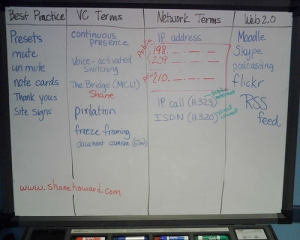
Word Wall from Jazz Workshop
Word Wall in the Jazz Workshop

I really started to learn more when we made the switch to IP videoconferencing in 2005. An early workshop that I attended in 2006 was “Understanding and Troubleshooting Videoconferencing Networks.” I thought for sure I wouldn’t get anything out of it and that it would be over my head. But surprisingly, I’d experienced enough situations in our IP calls that I learned something and actually understood it! Some basic concepts (written in my lay language!) include:

  • IP numbers that start with 10. are internal addresses and people outside can’t call them.
  • Most videoconferences are at 384K. Compare that to the amount of available bandwidth on a typical day to know if you’ll be able to sustain a “good enough” videoconference.
  • Packets are little pieces of info sent over the network. In email the packets eventually get there, get together, and give you an email. But in VC, if the packets don’t show up in time, they get thrown away. Hence, packet loss. Usually 2% packet loss or higher becomes intolerable.
  • A NAT is network address translation, and both the codec/endpoint and the firewall/router need matching settings for NAT to work. This is because the endpoint/codec needs that info to set up the packets properly.
  • An IP videoconference call is set up on port 1720. After that the two codecs negotiate which ports to use for the audio and video streaming. This is what’s going on when it rings & rings.
  • If you’re using a gatekeeper, ports 1718 and 1719 are used to find and register with the gatekeeper. More on ports here.
  • Two great resources to learn more about H323 and your network are: H323 and Firewalls from MOREnet in MO; and UKERNA/Janet Security Guide for H323 from the UK.

Working with District Tech Coordinators

  • It’s important that they understand the impact of VC on their network. See the notes above. Even if you don’t understand how it all works, it helps to know a bit of “techie language”, enough to explain what VC does. I’ve found VTC Talk a useful site to learn to talk to the technicians. It’s desirable to be able to point them  in the right direction of what to do to make it work, and where to find answers.
  • It’s also important that those of us in VC realize that network technicians have legitimate concerns about the health of their network. Listen. Realize also that they are busy and usually overworked. Hear their side. Send them to third party resources (such as those above) to explain the issues in their language.
  • We try to do summer installations and upgrades if at all possible. During the school year, there are so many problems to fix, it’s hard to find time to learn new things or change network policies to make VC work. It can take 3-6 months to get VC working on your network during the school year. Better to do it in the summer.
  • Know your audience. Some tech coordinators in our districts came from the education side, and others came from business/technology. Some of them are interested and want to know a lot about how to use VC in the curriculum. Others know that the teachers want and use it, and all they want to know is what needs to be done on the network. Tailor your message accordingly!

Your Turn
What do you think? Do you use any of these strategies? Do you have any other tips? Please comment!

Understanding and Troubleshooting Videoconference Networks

Need to understand more about what VC is doing on your network and how it works? Just saw this announcement on the Megaconference Listserv:

This workshop is available again May 7-8th.  You can attend on site in Madison, Wisconsin.  This time, the program director is also allowing participants at a limited number of H.323 videoconference sites, I think that includes HD.  Contact Prof. Thomas Smith as listed in the brochure at http://epdweb.engr.wisc.edu/Courses/Course.lasso?myCourseChoice=K438

I went to this workshop a while back when I thought I didn’t know enough to learn anything from it, but surprisingly I did! You can read my past blog posts about this workshop here and here.

They don’t pay me, or even ask me, to advertise this workshop. I’m just sharing it with you because it was such a benefit to me.

Dear VC Vendors: Please Fix Dialing

This post has been simmering in my brain for a while, especially after another season of Read Around the Planet and all the dialing challenges that come with it. I know that my technical knowledge is not complete, and this may not be accurate within a few months or years. Still, I think it needs to be said. I invite anyone who would like to correct me to please use the comment feature to add your knowledge and opinions, especially the vendors.

The Problem of Dialing

So here goes. As the vendors try to find ways around the limitations of IP address dialing, firewalls, etc., they are creating a nightmare of dialing problems for those of us who use VC to connect 95% of the time “off net”, off our network, and with schools around the world. Here’s my view of the current situation.

Polycom IP##Extension Format

Polycom’s firewall traversal unit means that outsiders dial the IP of the unit and then ## with the alias of the endpoint behind the firewall. This allows for one public IP to be shared with other units. This is true for the V2IU, and I don’t know about the new Video Border Proxy. In addition, the RMX uses this format for it’s meeting rooms, and the MGC can be set up this way for meeting rooms as well.

However, here’s where it doesn’t work:

  • Tandberg endpoints can’t dial this format
  • Tandberg MCUs can’t dial this format
  • Anything registered to a gatekeeper can’t dial this format because gatekeepers strip off the ##extension.

Currently on the RMX, if someone can’t dial the IP## Extension, and you can’t dial out to them, there’s no way to get them into the conference.

TANDBERG Extension@IP Format

TANDBERG endpoints behind a border controller are dialed using the extension@IP format.
Here’s where this doesn’t work:

  • Polycom endpoints can’t call that format
  • It’s intermittent with at least my TANDBERG MCU. It worked before Read Around the Planet but then since then I can’t call 3 different places in 3 different states that use this format. Haven’t had time to open a ticket yet, but it’s annoying that nothing changed that I know of and it just quit working.

TANDBERG Codian Far End Camera Control

On the MCU side, the Codian MCU, recently bought out by TANDBERG, most often uses an entry room where the enduser uses far end camera control or tone dialing to enter the correct conference. It remains to be seen how TANDBERG will adapt the Codian technology. The far end camera control method works on most endpoints, except:

  • Getting far end camera control to work through another MCU is problematic at best. The tones or far end camera control usually aren’t passed from one MCU to the other.
  • Some legacy endpoints such as VTel (yes those are still out there in schools)

School Scenarios

Now I can just hear in my head all you techies telling me, why are you doing endpoint to MCU to MCU to endpoint dialing? Why are you dialing off net? Why don’t you just dial out to these problematic sites? Why doesn’t everyone just get rid of those “legacy” units? Well, here’s what’s happening in schools.

  • Dial out only. Fairly often, techs are nervous about NATing a static IP for H323 videoconferencing, so they only allow dialing out. If you can only dial out and you can’t dial the other site’s weird dialing, then what?
  • Dial out only through MCU. Many educational service agencies have a WAN where their schools can only connect out through the MCU. Hook two schools together this way, and you have to do endpoint to MCU to MCU to endpoint. A large number of my calls are like this. Sometimes not even by technical necessity, but because it’s easier to support the local schools by scheduling calls for them.
  • Dialing Predominantly Offnet. I wish I could just drill it into engineer’s heads that if a school or district is getting videoconferencing for enrichment/content providers/collaborative projects etc, they will do almost ALL their calls off net. But the vendors seem to be thinking mostly about internal corporate communications on a corporate network. All the while they enjoy and promote big events such as Read Around the Planet and Kids Creating Community Content which require offnet dialing to outside schools.
  • Legacy Lasts a Long Time. We also tend to get VC equipment and expect it to last 10 years. VC is still most often purchased with grant funds (not sustainable) and schools can’t drop $6-10K every 3 years or so to upgrade their VC equipment. It’s just not happening!

Gatekeepers

Some sales guys have told me that dialing should only happen through gatekeepers. I realize that the higher ed / Internet2 / Megaconference community has the Global Dialing Scheme (GDS) which sometimes helps. However:

  • Schools not familiar with GDS don’t want to neighbor to each other’s gatekeepers. Imagine in the two weeks of RAP, the huge participating schools with 120 connections. That’s 120 different sites to call in two weeks. Should we neighbor to every single other site we connect to. It’s insane to expect this.
  • Many small schools just get an endpoint only. They don’t have an educational service agency or statewide network to connect to a gatekeeper and get on GDS. How will they dial?

It’s not realistic to expect that the K12 VC community would be able to do dialing through gatekeepers only. The necessary structure isn’t in place, and probably won’t be anytime soon.

Dear VC Vendors: Please Fix Dialing

So, this is my plea to the vendors. Please think of us in the K12 community where we make most of our calls off our network. Surely corporate customers need to call off their network too. When will H323 videoconferencing work like a phone (platform independent, just works)?

I don’t know what the answer is. But dear vendors, would please get over your proprietariness and make the dialing work between all H323 endpoints? Please!

Do Beliefs About Learning Affect Installation of VC?

Today we had a vendor come in to write up specs to upgrade our distance learning room. We use this room for interviews with vendors, sharing with community/government organizations for workshops, private schools coming in to connect to content providers and collaborations, professional development and meetings, and more.

The vendor was surprised that we didn’t have a row of four monitors on the back wall and a podium for instruction.

As my supervisor and I were discussing his visit, I suddenly made a connection to my current studies about learning theory.

If you believe in direct instruction/lecture/”talking head” learning, how would you install videoconferencing?

If you believe in constructivist learning or social constructivist learning, how would you install videoconferencing?

What do YOU believe about learning? Is it reflected in your installation of videoconferencing equipment? Please feel free to comment!

Day 18: Uh Oh, It Doesn't Work!

20 Days to Being a Better VC Coordinator

One of the scariest things about videoconferencing is when it doesn’t work and you have a classroom of students waiting. Yesterday Roxanne gave you some great tips for accessing your lifelines. Today, we’ll examine the most common problems in a videoconference and give you tips for solving them. This is actually part of a training that I conduct for my coordinators, and we try to simulate each problem during the training.

First, there are four parts to a successful videoconference: sending video, receiving video, sending audio, and receiving audio. Most of the common problems related to one of these four parts.

The solutions under each problem are listed in order. The top ones are the most common solutions to the problem.

TV is Black / I Can’t See / I See Black / I See Blue

  • Check the TV/monitor/projector. Is it on and is it connected correctly? Some of my coordinators keep a picture or drawing of how all the cables are supposed to be connected.
  • Check the monitor. Is it on the right channel? Make a note for yourself on which channel it should be.
  • If you were able to see the dialing screen/menu before you connect, then it’s not your TV/monitor/projector. A blue or black screen is often a firewall problem on either end of the call. Try one of these test numbers to make sure you can connect outside your district on your own. Have the other site try connecting somewhere else too. If you can both connect to other places but not to each other, it’s probably a firewall problem. If you have access to someone with a bridge/MCU, ask them for help (usually at your educational service agency).
  • Once in a while the flat screen TVs won’t cooperate. If so, unplug the power, wait, plug it in.

Audio: I Can’t Hear

  • Check your TV/monitor volume. Check your videoconference system’s volume too. Both should be about in the middle (if your system uses both).
  • Have the other side check their microphone. If you see a Far End Mute icon, you know their microphone is muted. (This only shows up in point-to-point calls). Ask them to unmute. Tell them you can’t hear. Have them nod their head or wave if they can hear you.

Audio: They Can’t Hear Me

  • Check your microphone. Are you muted? Check your screen – usually you’ll see an icon if it is muted. Or Polycom microphones are muted when the light on it is red. Unmute so the far site can hear you.
  • Their TV volume might be turned down. You may have to write them notes on a sign to hold up in front of the camera or write on paper under the document camera. (Or call them on the phone.)

They Can’t See Me

  • Have them check their monitor/projector/TV. Is it on & on the right channel?
  • It may be a firewall problem on their end. See “I Can’t See” above. Have them try connecting to the one of these test numbers. They should determine if they get a picture and then call you back again and report. If they can’t see a picture on your system or the test site, they should talk to their tech person. If you can both connect to other places but not to each other, it’s probably a firewall problem. If you have access to someone with a bridge/MCU, ask them for help (usually at your educational service agency).

Call Rejected or Busy Signal or Call Rings & Rings

  • If you call and get a “call rejected” error, usually the other person is already in a call.
  • If the call rings & rings, usually something in the network between you & the other site is not allowing the call to negotiate. Both sides should try a test site. If your test call just rings & rings, then it’s not connecting through firewalls. If you have access to someone with a bridge/MCU, ask them for help (usually at your educational service agency).

Alerts: What Do They Mean?

  • IP Network: If this is down, then you don’t have a live Internet connection. Try another Ethernet jack in the room. Using a spot where a computer was connected and working usually guarantees a good connection.

When All Else Fails, Reboot or Redial

  • If you have a lot of connection problems, sometimes redialing will help clear it up.
  • If nothing is working, reboot the camera. Turn the camera off (reach up!!), wait, turn it back on.

Polycom Specific: “Flippy-Do-Button”

My schools all have Polycom endpoints, and another common problem is when you accidentally get yourself in the big screen and the far site in the picture-in-picture. How do you switch it back?

This happens with the button that I call the “flippy-do-button”. I’m sure there’s a more technical term! 🙂 On a VSX7000, if you press the Camera button while you are in a call, you’ll see an icon with two arrows pointing around. If you select it, you’ll swap the far and near pictures. It’s easy to change it accidentally by pressing the camera button and then 1 or the enter key. To get it back, just press Camera, 1. Whew!

Comment Challenge

  • Take this Word file with basically the same information presented here. Fill it in with your favorite test site number and your videoconferencing support number. Add the channel for your TV/monitor (if applicable). Then tape it to your videoconferencing cart in a prominent location.
  • Please comment and add any other troubleshooting tips you have.

New Developments in Desktop VC

Recently, thanks to the Megaconference Listserv, I found another blog with reviews of technology, including videoconferencing tools: TelBitConsulting Technical Blog. This blogger admits a bias to desktop VC, which shows the corporate focus. However, I still want to see a desktop VC system morphed with Promethean or similar interactive whiteboards to bring curriculum videoconferencing to all classrooms.

Polycom has come out with a new CMA product, which I want to look into further when Read Around the Planet calms down a little. TelBitConsulting has done a review of CMA and other new Polycom products. What caught my eye was this quote:

The CMA Desktop is meant to work most efficiently within the corporate environment.  Telecommuters connect via a Virtual Private Network (VPN) but can do so from Starbucks if they so wish.  The downside is that external people with H.323 endpoints, like myself, are harder to reach, and the CMA Infrstructure may not be for us loners.

I certainly evaluate all these new products on how well they connect to all the H323 anythings out there – like we do for Read Around the Planet. Sounds like CMA might not work well for these types of collaborative connections, but need to investigate further.

The other new desktop product that has caught my interest in Vidyo. I ran across a Google ad one time wandering on the Internet. I’ve requested some datasheets and intend to learn more about this too (after RAP matching is done!). However, in the meantime, TelBitConsulting has done a review on Vidyo too. It seems that these new models are putting the money & effort into the network infrastructure and using the distributed concept like Skype. Vidyo has a gateway that hooks to h323. Not sure if this is a good plan for K12 curriculum videoconferencing or not, but I intend to explore it further.